Desktop 1.6.3
Read aloud to check rhythm and dialogue
Choose a voice, play and revisit a short passage, then revise one sentence and listen again.
Updated
On this page
Listen for one thing to revise
Reading a scene aloud can make a crowded sentence or an awkward exchange easier to notice. In this exercise, choose a voice, listen to a short passage, replay a moment, then change one sentence and listen again. Judge the wording and rhythm yourself; the voice is a way to check the draft, not a verdict on it.
Open The Harbor Ledger sample workspace, or use your own project. See Quick start for opening a workspace. Reading your document requires signing in, a working connection, and available account allowance. You do not need to send an AI chat message.
Prepare a short practice document
Read current text reads the entire current document. Selecting a paragraph does not restrict the reading to that selection. For this exercise, put a short excerpt in its own document:
- Right-click Manuscript in the file tree and choose Create File.
- Enter Read Aloud Practice, without an extension, then choose Confirm.
- Open the new file and paste the passage below, taken from 07 - Rainy Harbor.
- Save it with Ctrl + S on Windows or Cmd + S on macOS. Editor basics covers creating and saving files in more detail.
Mara was angry with him for staying away, and relieved that he was alive. She wanted to ask where he had been, but she was afraid that the answer would change everything.

"You should not have come," she said.

"You brought the book."

He remained on the ladder, one hand hooked around a rung. The other was below the pier's edge. A narrow white scar crossed his chin. She could not remember whether it had been there before.
Keep the original chapter intact while you experiment. When working on your own story, copy a short passage into a separate document in the same way.
Choose a language and voice
- Open the account menu at the top right, choose Settings, then Read Aloud.
- Set Reading language to English (US) for this English sample. For your own text, choose a supported language that matches it; changing the interface language is a separate setting.
- Use the small play button on a voice card to preview its sample. Then select the card you want and check the Current voice label. The example uses Warm Male.
- Close Settings. Changes are saved automatically and apply the next time you start reading.
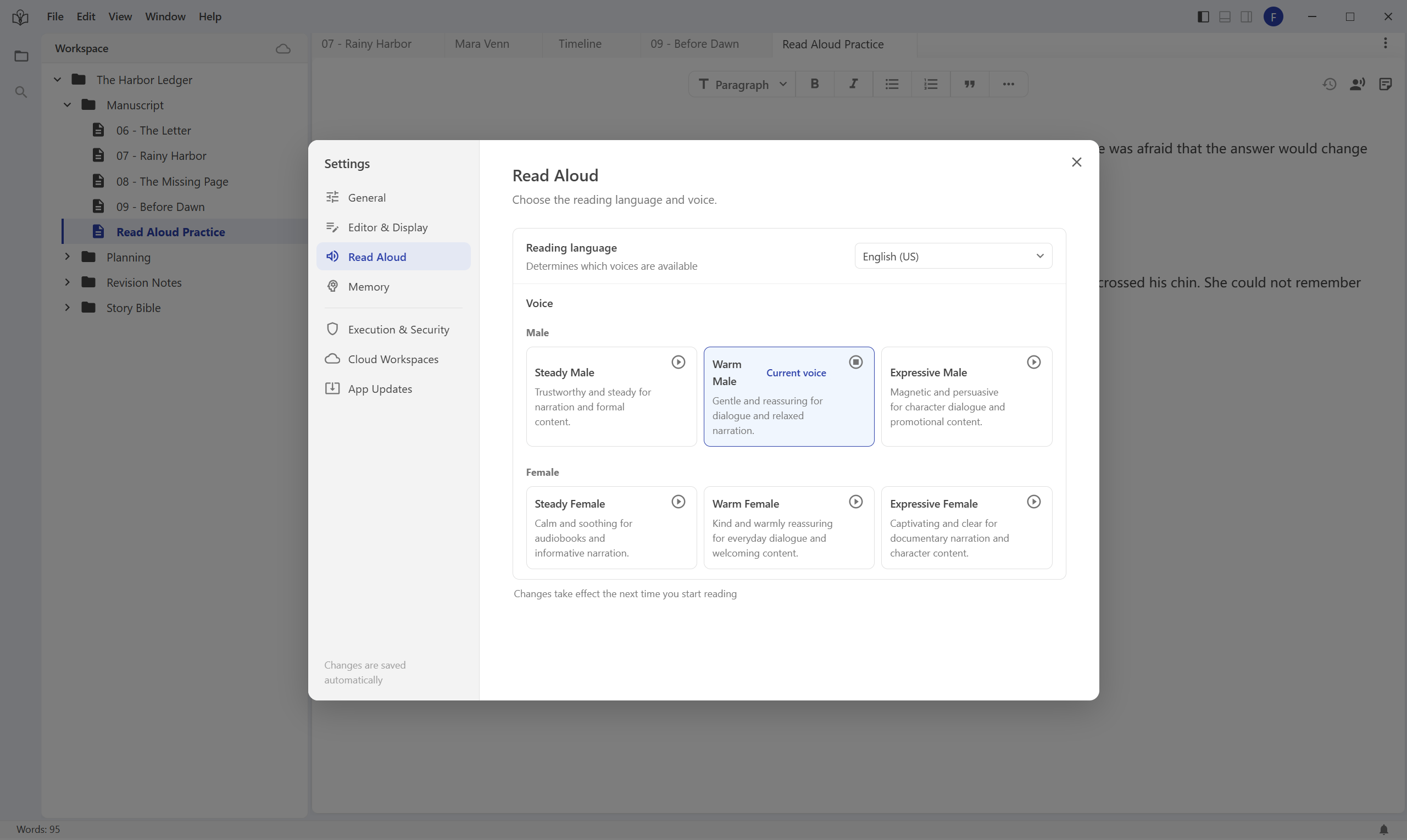
Screenshots show the English desktop interface. Click an image to view the complete maximized window.
The preview plays a sample, not your manuscript, and previewing a card does not select it. Stop an active document reading before previewing another voice.
Play, pause, and replay a moment
With Read Aloud Practice active, choose the voice icon at the right of the editor toolbar, whose tooltip is Read current text. Wait for audio to load. The player appears near the bottom of the editor.
| Control | What to do |
|---|---|
| Pause / play in the player | Pause to consider a line, then continue the same reading. |
| Progress slider | Move back to replay a moment. Seeking is limited to audio that has already loaded. |
| Speed button beside play | Choose 0.8x, 1.0x, 1.25x, 1.5x, or 2.0x. Start at 1.0x when judging rhythm. |
| Stop reading in the editor toolbar | End this reading. Use it before editing the text or starting again with another voice. |
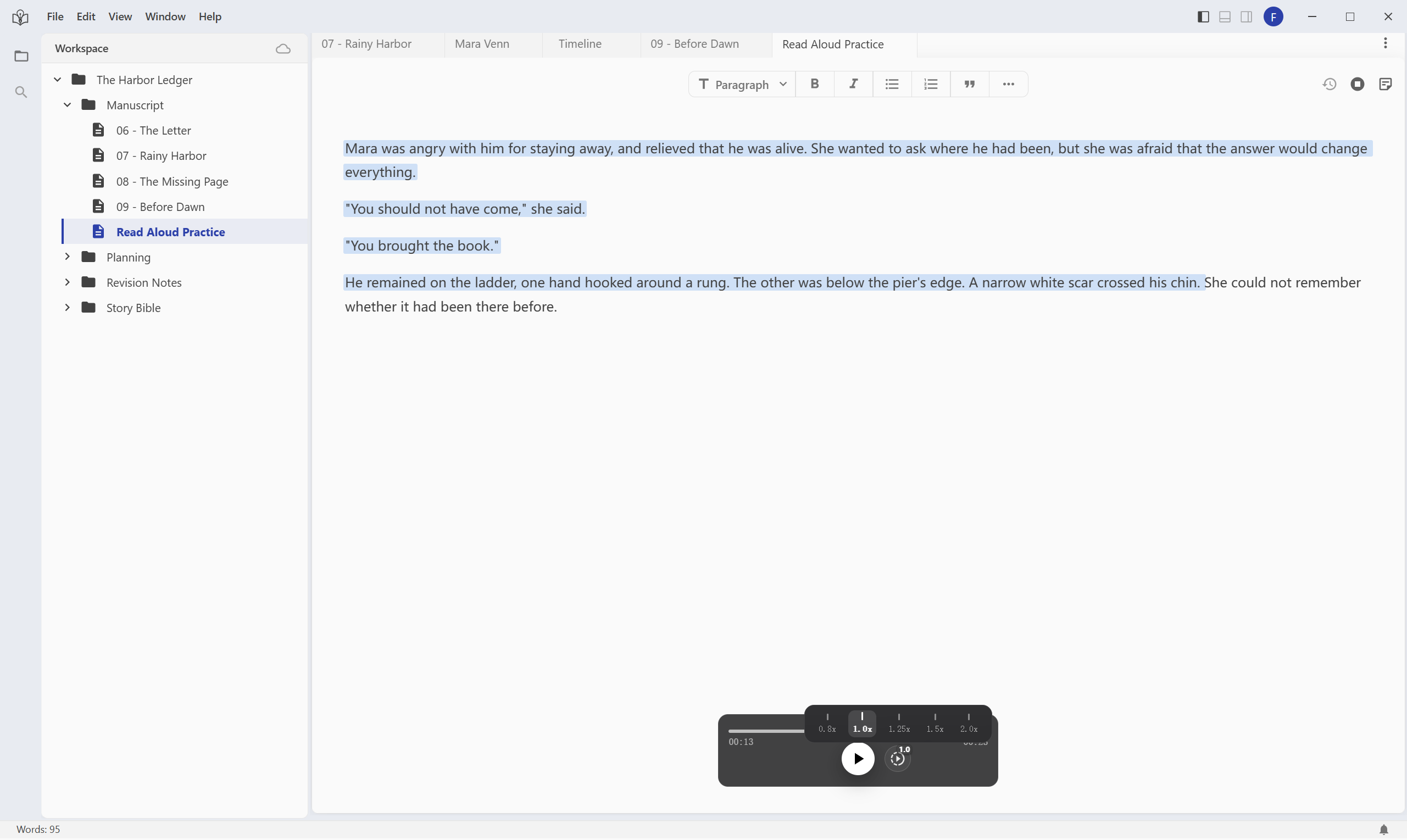
The progress display and highlighted text help you find the passage. A highlight can cover several sentences, so use the surrounding text as well. Total duration can initially be an estimate and update as audio loads.
On the first pass, listen for one issue: a sentence carrying too many thoughts, dialogue that repeats the narration, or a pause that falls in the wrong place. Pause, move back a little, and replay the same moment before deciding to change it.
Change one sentence and listen again
Select Stop reading in the editor toolbar. In the first paragraph, replace:
She wanted to ask where he had been, but she was afraid that the answer would change everything.
with:
Where had he been? She was afraid the answer would change everything.
Save, then select Read current text again. Keep the same voice and speed so you can compare the wording. Pausing and resuming the old reading does not load your revised text.
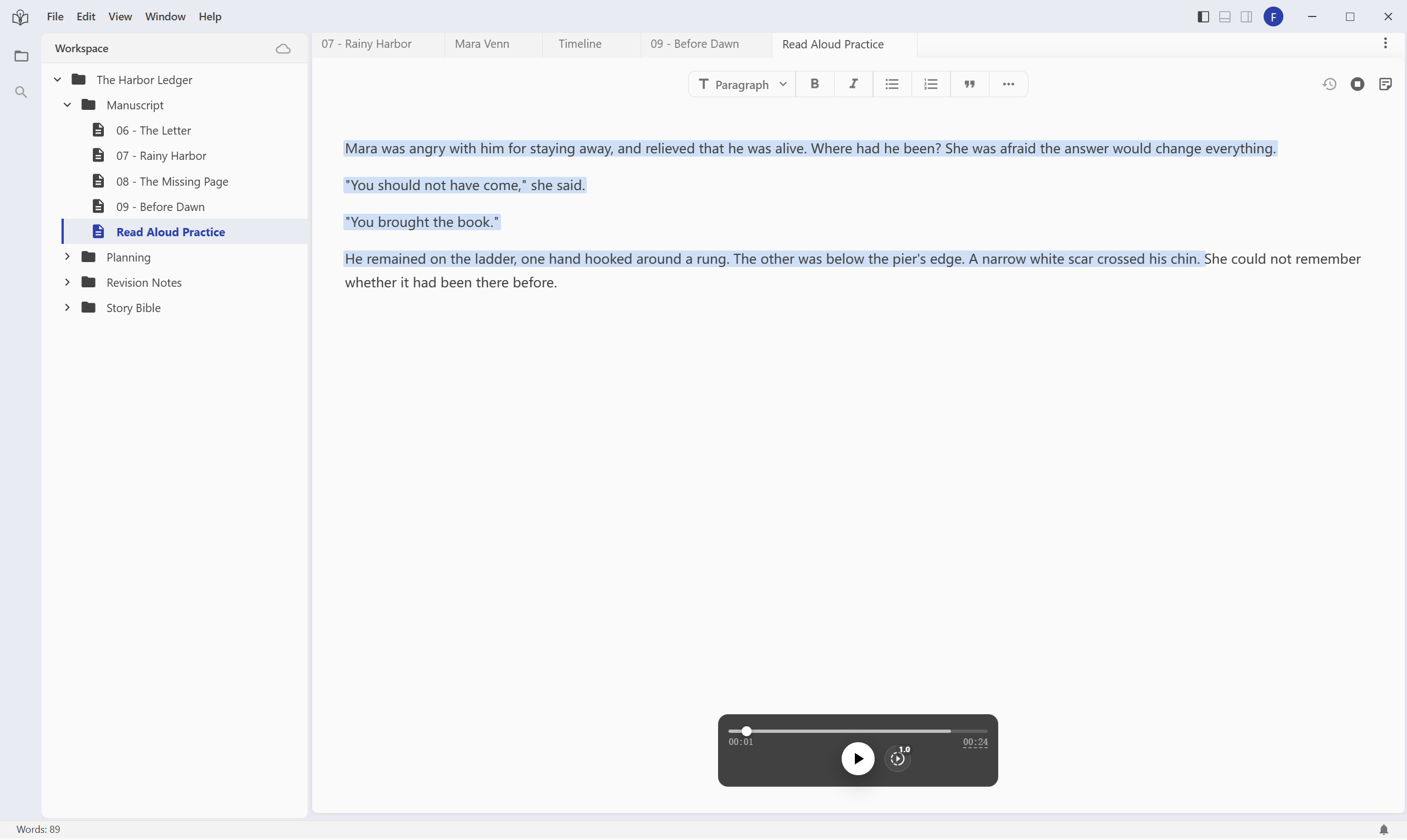
The shorter version brings Mara's question forward, but it also removes the explicit wish to ask him. Decide whether that tradeoff fits the scene. Keep, adjust, or undo the change; shorter is not always better.
Finish by stopping playback and saving the version you prefer. You have completed the exercise when you can find the passage again and explain why you kept your revision. If you want AI feedback next, use file references and context to identify the passage and the question you want answered.
When something looks different
Nothing plays. Confirm the current document contains text, you are signed in, and the connection is working. If progress advances silently, check the app and system sound output. Follow any allowance or service error shown; see credits and usage for account usage information.
The preview is unavailable. Stop the current document reading first. If the app reports incompatible preview resources, update the client and check the available voices again.
The voice or wording did not change. Voice settings apply to the next new reading. Stop the old reading, confirm your settings and saved text, then start again.
I only want one paragraph. Copy it into a separate practice document. The current reading control processes the whole active document, even if part of the text is selected.