Desktop 1.6.3
Save writing instructions as a personal skill
Create a reusable writing skill, select it with your scene references, and refine its instructions after a real review.
Updated
On this page
Save a requirement you use often
If you repeatedly ask for restrained dialogue, consistent character voice, or a particular review format, save those instructions as a personal skill. You can select it for a later request without pasting the whole checklist again.
This exercise creates restrained-dialogue, uses it to review a conversation, then changes one requirement and tries it again. The skill supplies the method; your referenced files supply the scene and character facts. Keep chapter-specific information in those files so you can reuse the skill elsewhere.
Open The Harbor Ledger sample workspace, sign in, and choose an available AI model. The exercise uses Rainy Harbor, Mara Venn, and Voice Guide, as in file references and context. See Quick start if you have not opened the sample yet.
Create a local skill
- Open Skills in the right sidebar.
- Select the + button, whose tooltip is Create skill.
- In Create local skill, leave Desktop selected under Compatible platforms for this exercise, then choose Create skill.
- The Local skill editor opens. Fill in the three fields described below.
This creates a skill on this computer. Selecting a compatible platform does not transfer it to another device. The ID is generated for you; you can leave the icon, color, and other settings at their defaults for this exercise.
Write the purpose and instructions
Use Skill name (name) for a short name: restrained-dialogue. This field accepts lowercase letters, numbers, and hyphens; use a different name if you already have your own skill with this name.
In Skill description (description), say when to use it:
Use when reviewing or revising fictional dialogue for subtext, restrained emotion, and character voice while preserving the scene's facts.
In Skill content (content), give concrete instructions. You can copy this starting point:
# Restrained Dialogue

Read the target passage, nearby paragraphs, and referenced character notes.

1. Identify what each speaker wants and what remains unsaid.
2. Preserve the point of view, scene facts, character knowledge, and reveal order.
3. Look for emotional explanations or dialogue that repeats what actions already show.
4. Suggest the smallest useful change. Do not invent motives, backstory, or plot facts.

For a review, return up to three bullets: a short quote, what works or needs attention, and one revision direction. Do not edit files.
For an explicit revision request, change only the named passage. Keep surrounding text intact for the author to review.
If the passage already works, explain what to keep.
Select Save changes, then Close. Check that restrained-dialogue appears in Local & system. Open it again if you want to confirm the saved description and instructions.
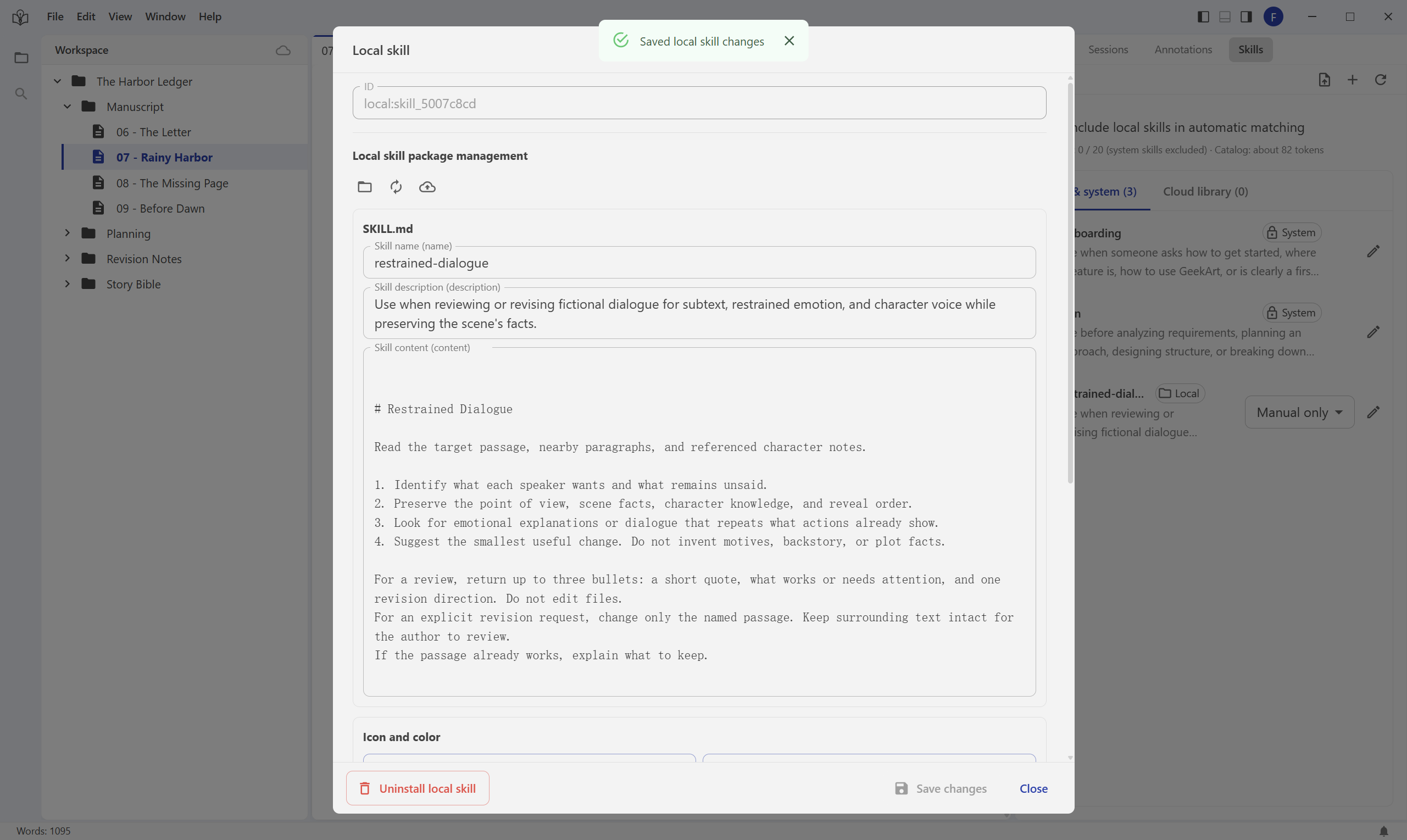
Screenshots use the English interface and English example instructions. Click an image to see the full window.
The description helps identify suitable tasks. The content explains how to perform them. Specific checks and a clear output format are easier to verify than a broad instruction such as “make the writing better.”
Choose when the skill is used
In the skill list, open the mode selector next to restrained-dialogue and choose Manual only for the first exercise.
| Mode shown in the app | What it means |
|---|---|
| Automatic | The skill can be considered for matching tasks when Include local skills in automatic matching is on. It is not guaranteed to run on every message. |
| Manual only | You select the skill for the message when you want to use it. |
| Off | The skill is excluded from automatic matching and from the message's skill picker. Its saved content remains available in Skills. |
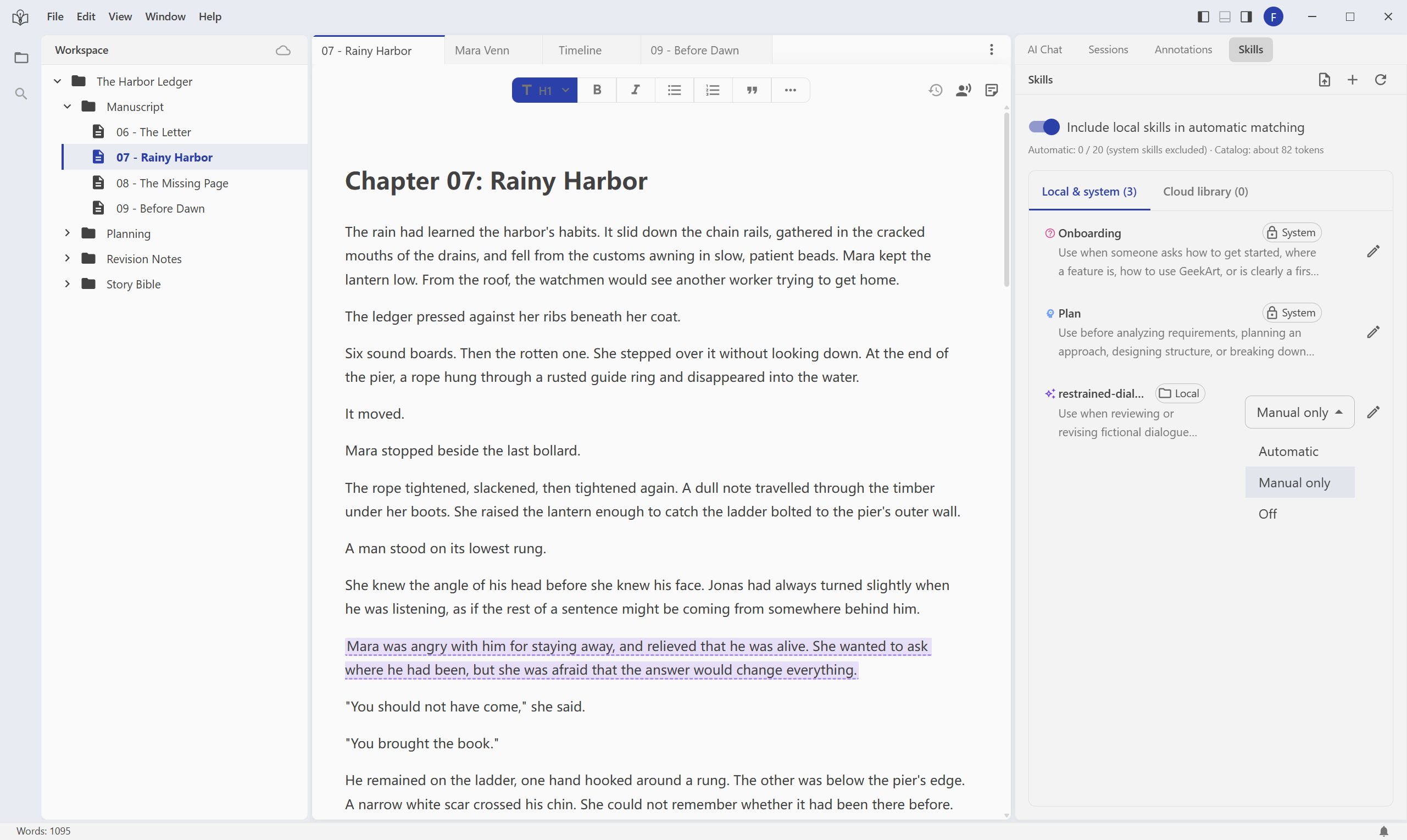
Turning off the panel's automatic-matching switch does not uninstall local skills. If you want to use a particular skill for this request, explicitly select it in the message and check the result.
Use the skill in a message
- Return to AI Chat. You can start a new conversation for this exercise.
- Select + above the message field. Under Skills, choose restrained-dialogue.
- In the same menu, choose Reference files, then add Rainy Harbor, Mara Venn, and Voice Guide. The previous reference guide explains the file search.
- Click outside the menu. Check for one skill label and three file labels above the message field.
- Enter this request and send it:
Use the selected skill to review the exchange from "Say my name" through "You don't get to answer that quickly" in Rainy Harbor. Read the referenced chapter, Mara Venn, and Voice Guide. Keep your response to three brief bullets. Discuss only; do not edit files.
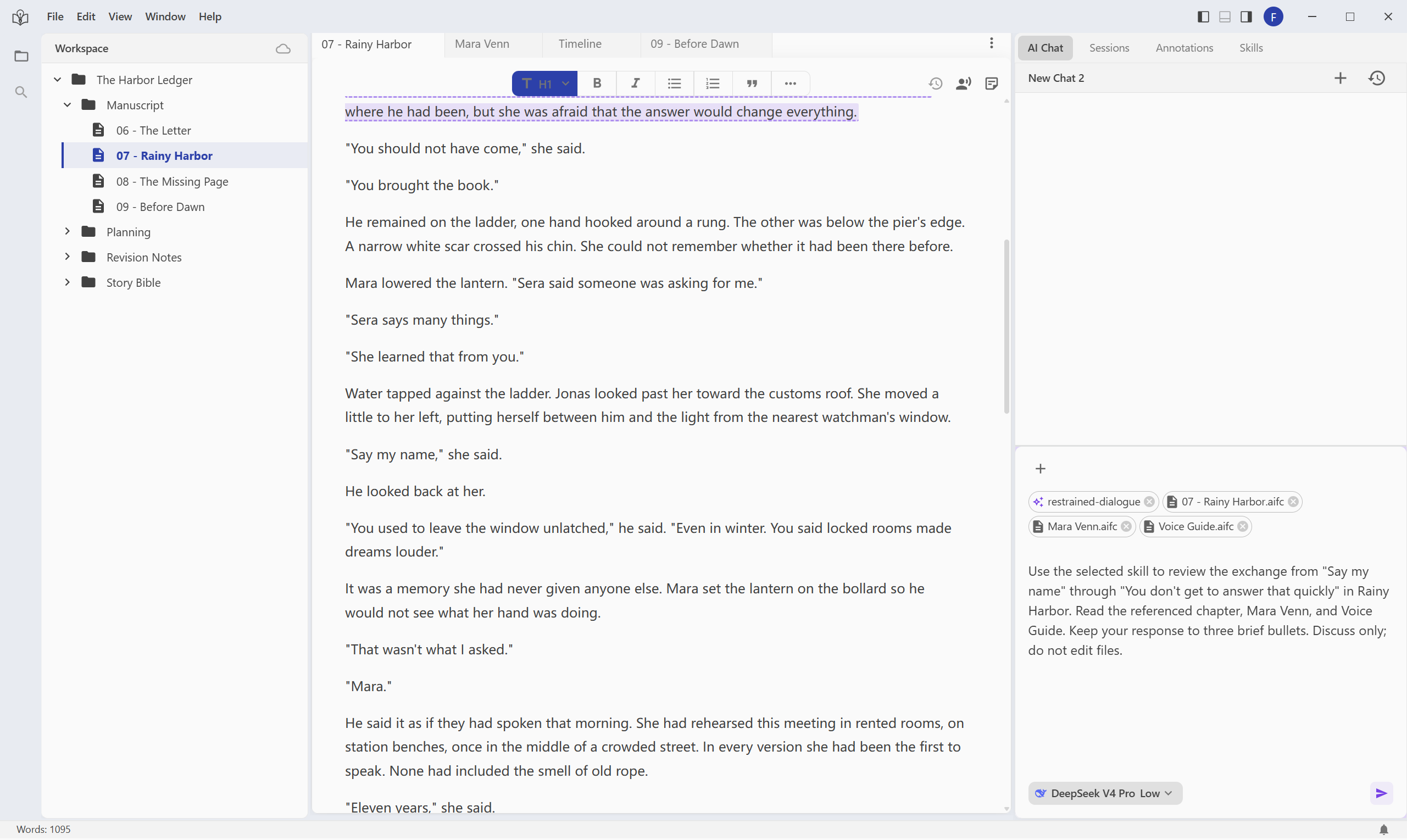
The message still names the passage and the task. Saving a skill does not choose a chapter or authorize every kind of edit on your behalf.
Check whether the reply quotes the actual exchange, preserves what the characters know, and distinguishes useful restraint from unnecessary explanation. A good review can recommend keeping a line. If the reply misses a requirement, point to it before requesting changes. When available, expand the reply's work log to check whether Invoke Skill reports the selected skill as Loaded.
The labels apply to this message. After sending, check the selection again for the next request; removing a draft label does not uninstall the skill.
Change one requirement and try again
Return to Skills, open restrained-dialogue, and add this sentence to the end of Skill content (content):
For a review, end with a short 'Keep' line quoting one line of dialogue that should remain unchanged and explaining why.
Select Save changes and close the editor. Back in AI Chat, select the skill and the three files again, then send:
Use the selected skill's current instructions to review the same exchange from "Say my name" through "You don't get to answer that quickly" in Rainy Harbor. Give no more than two brief observations. Discuss only; do not edit files.
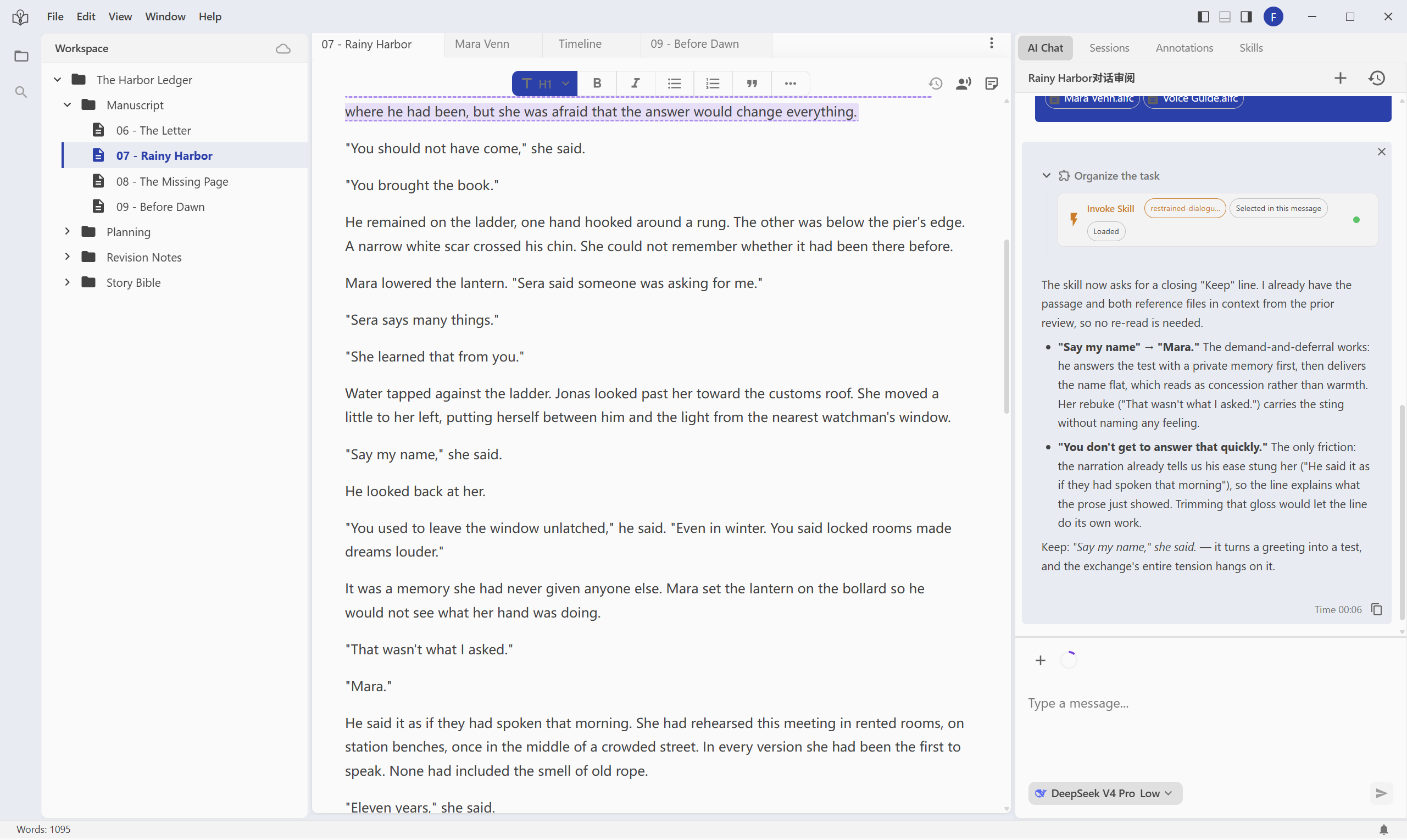
This is an actual second reply after saving the added requirement. Responses vary; check whether your own reply follows it.
The new request does not repeat the full checklist or the added sentence. Check for the closing Keep line and whether its quotation and explanation make sense. Change one requirement at a time so you can judge whether it improves the review. Editing a skill does not rewrite old replies or your manuscript.
When something looks different
The skill is missing from the message menu. Check that it is installed locally, supports Desktop, and is not set to Off. A skill that only exists in Cloud library needs to be installed locally before desktop use. Refresh the skill list after changes.
The name field shows an error. Use a name such as restrained-dialogue, with lowercase letters, numbers, and hyphens. The description and instructions can be written in your own language.
The new rule was ignored. Reopen the skill to confirm it was saved, select it again for the message, and state the target passage clearly. Check for contradictory instructions and examine the reply against the rule; selecting a skill does not guarantee perfect compliance.
Is the skill shared across my devices? This exercise saves a local skill. Uploading and installing it on another device are separate operations; a local save alone does not synchronize it.
Can I ask it to revise the scene? Yes. Name the passage and the allowed changes in your request, then follow annotations and revision review. The exercise above only discusses the text and leaves the manuscript unchanged.