Desktop 1.6.3
Editor basics: write and save a scene
Create a chapter, keep reference tabs open, format your draft, check the word count, and save your work.
Updated
On this page
Start with a small scene
This guide takes you through everyday editing: create a chapter, write a short scene, refer to another document, and save your work. You can follow along without sending an AI request.
Open your own workspace, or download The Harbor Ledger sample, unzip it, and choose Open Workspace. Select the folder containing Manuscript, Story Bible, and Planning. The quick-start guide explains opening a workspace; use the import guide if you already have a draft elsewhere.
Find your way around the editor
Open Manuscript → 07 - Rainy Harbor. The main areas have different jobs:
| Area | What you use it for |
|---|---|
| File tree on the left | Find chapters, character notes, and other reference material. Expand a folder to see its files. |
| Document tabs above the text | Move between the chapter and reference documents you have opened. |
| Toolbar and text in the center | Write the scene and apply headings, emphasis, lists, or other formatting. |
| Status bar at the bottom | Check the current document's word count. |
| AI Chat, when open | Discuss or request a change. You can keep writing without using it. |
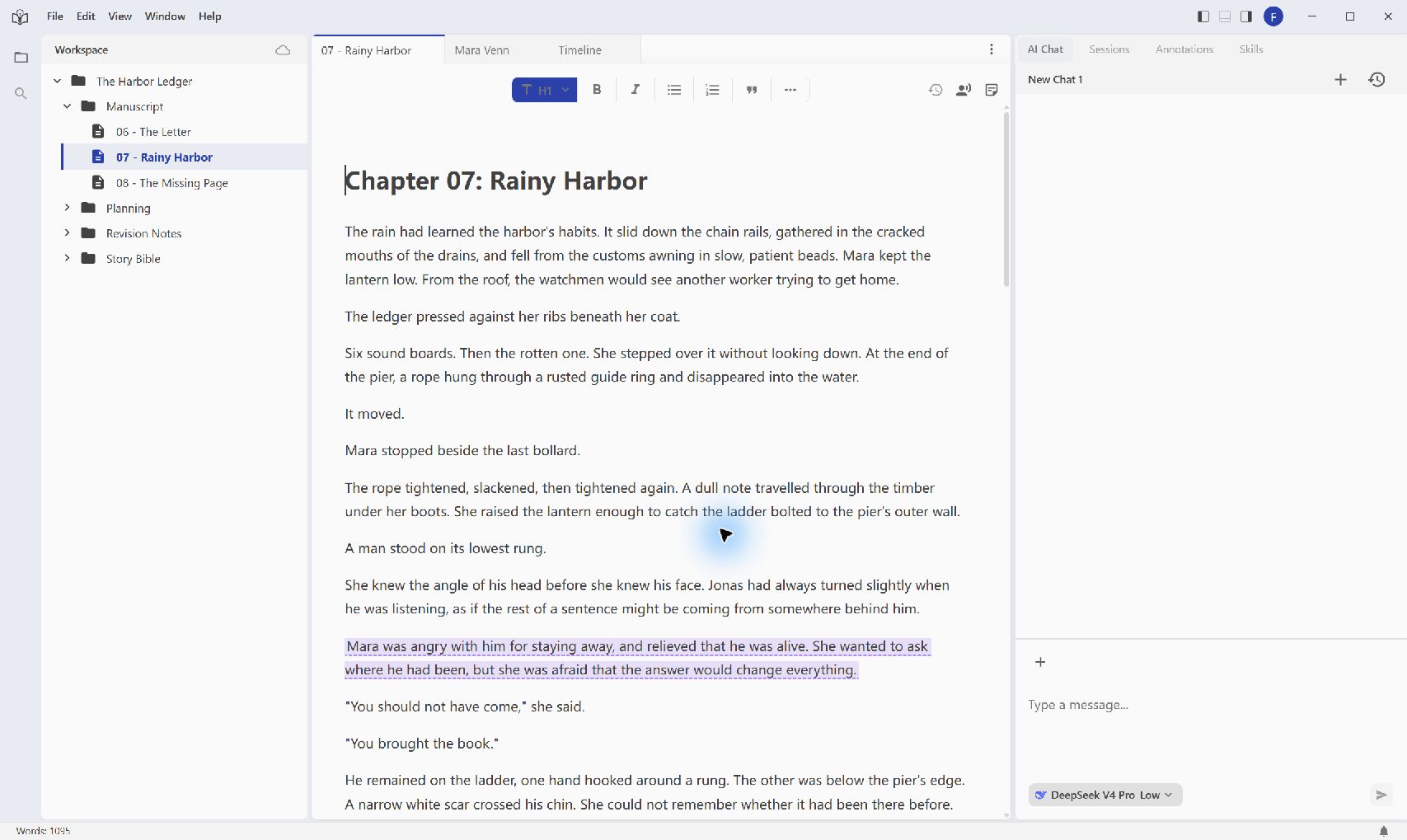
Screenshots use the English desktop interface. Click an image to see the full window.
Create a chapter and write a few paragraphs
- Right-click Manuscript in the file tree and choose Create File.
- Enter 09 - Before Dawn and choose Confirm. Enter the name without an extension; GeekArt adds it.
- Open the new file from the tree and click in the central editing area.
- Write a scene title, then start a new paragraph with Enter. You can type your own scene or use this exercise:
Before Dawn
Mara reached the ferry stairs before sunrise. A strip of blue cloth hung from the rail where Jonas had tied the boat. The knot was his. The blood on it was not.
She folded the cloth into her coat pocket. Behind her, the harbor bell rang once, although the bell keeper had been missing since Tuesday.
Add one sentence describing what Mara decides to do next. You now have a small draft that you can format and save independently of the existing chapters.
Give the draft a readable structure
Place the cursor in Before Dawn, open the heading menu on the toolbar, and choose H1 - Heading 1. For ordinary scene text, choose Paragraph. A heading applies to the paragraph containing the cursor; bold and italic apply to your selected words, or to the text you type while that format is active.
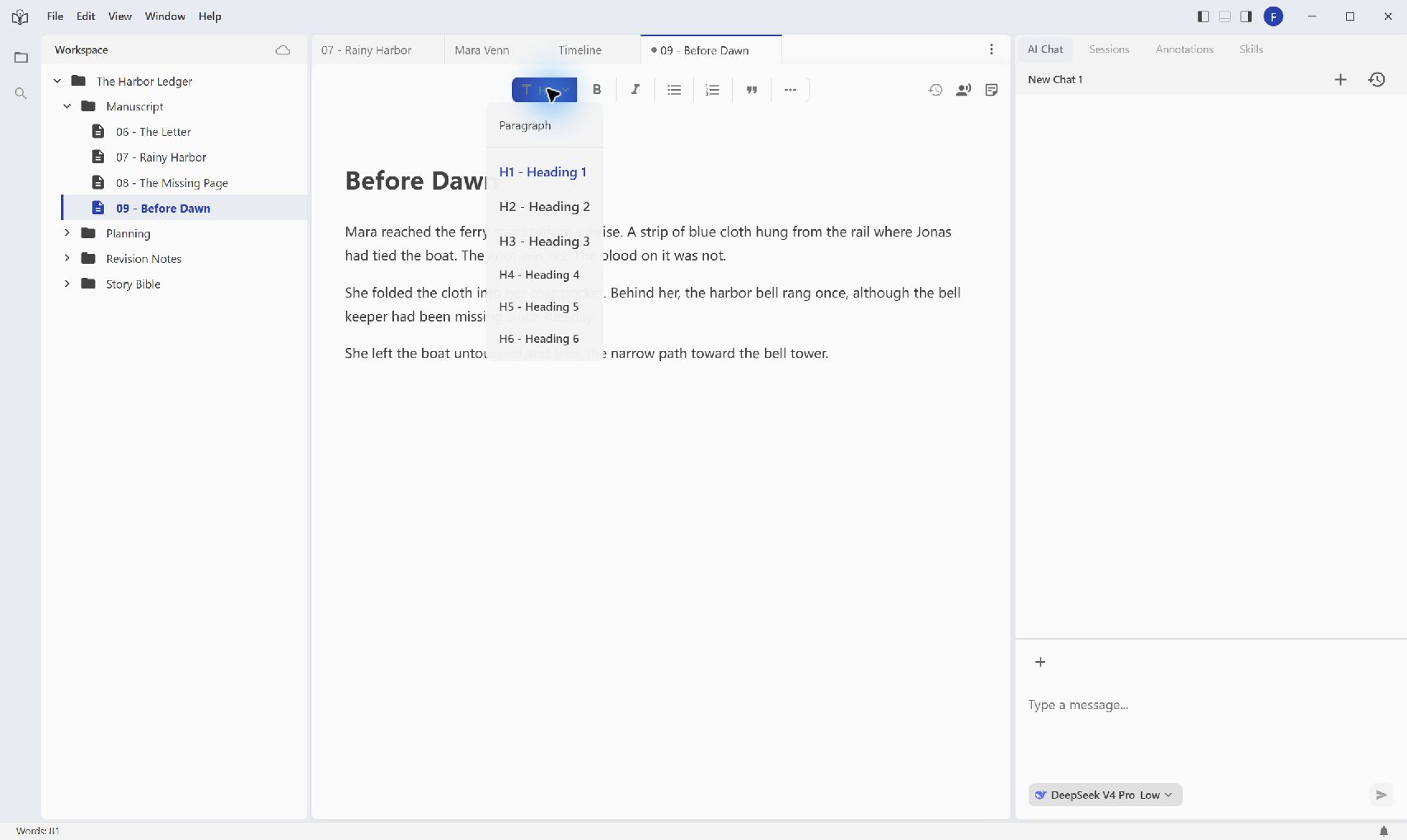
Use the controls that help the document's purpose:
- Bold and Italic add emphasis to a selected passage.
- Bullet List and Ordered List work well for scene notes and revision tasks.
- Blockquote separates a quoted passage from your own notes.
- More Formats → Horizontal Rule adds a visible break.
- More Formats also contains table and image controls when your reference material needs them. Image upload requires login.
To correct a typing or formatting mistake, use Ctrl + Z on Windows or Cmd + Z on macOS while editing. After a heading or list, check the toolbar before continuing: choose Paragraph when you want to return to ordinary prose.
Keep a reference document nearby
Before opening a second document, you can right-click the chapter tab and choose Pin to keep it available. Then open Story Bible → Characters → Mara Venn and read the relevant notes. Select 09 - Before Dawn in the tab bar to continue writing.
Closing a document tab removes it from the editing area; it does not delete the file from your workspace. Open it again from the tree when you need it. A pinned tab hides its close button. Choose Unpin from its right-click menu to show that button again, or use Close in the menu.
Opening a reference document for your own reading is separate from asking AI to use it. When you later request an edit, name or reference the relevant files and explain the intended scope, as shown in Quick start.
Check the count, save, and reopen
The status bar shows the count for the current document, rather than the total for every chapter in the workspace. Use it to keep track of this scene as you write.
Save the active document with Ctrl + S on Windows or Cmd + S on macOS. When the document has unsaved changes, you can also right-click its tab and choose Save. After saving, that menu item disappears until you edit again. Use Save All in the same menu when you have edited several open documents.
GeekArt also keeps automatic recovery saves while you work. Use an explicit save when you finish a writing session, and treat cloud sync and version history as separate features.
For a simple completion check:
- Save 09 - Before Dawn.
- Right-click its tab and choose Close.
- Open it again from Manuscript.
- Confirm that your final sentence and the scene heading are still there.
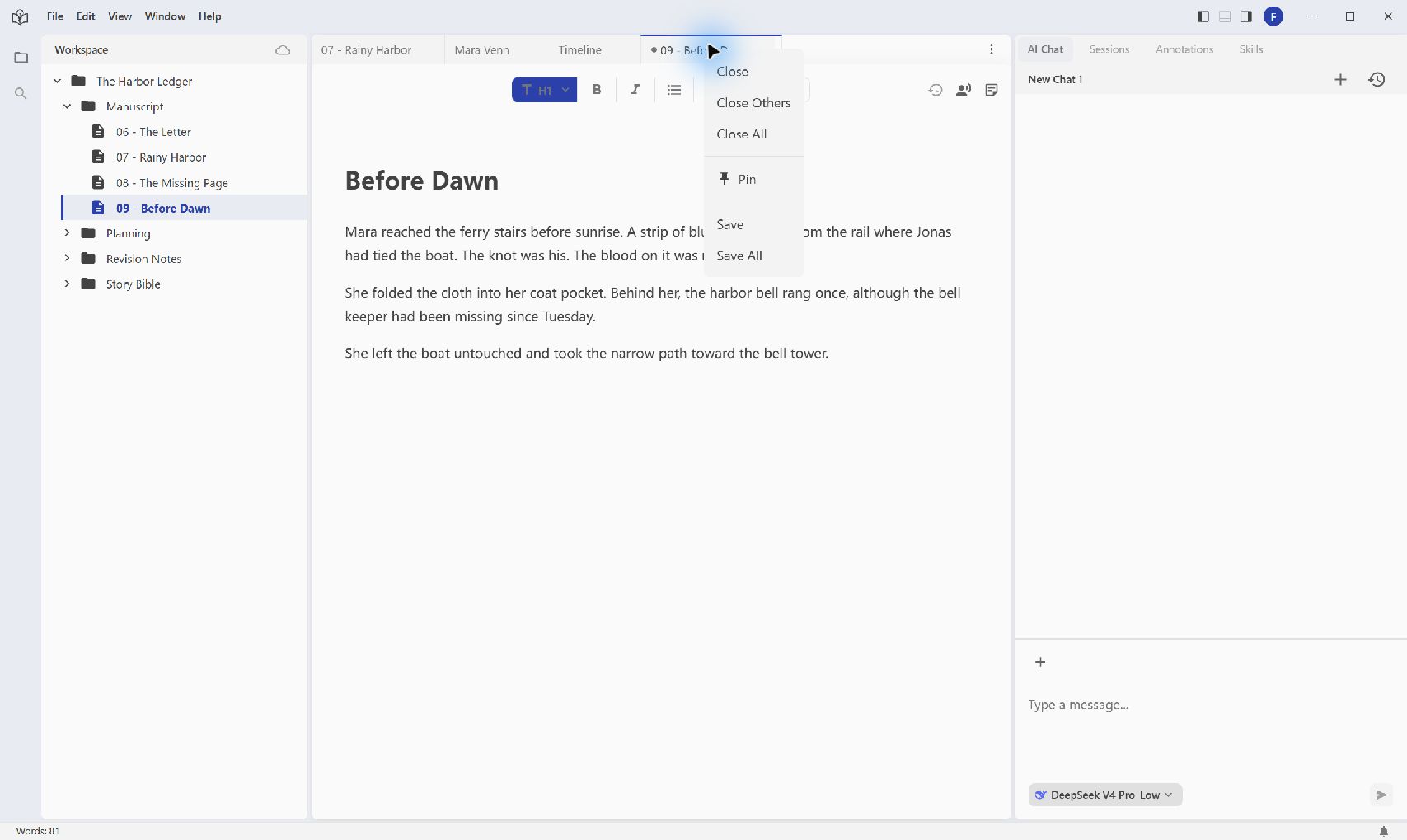
The screenshot shows the menu before saving. A saved document no longer has the individual Save command.
When something looks different
The new file is not in the folder I expected. Check which folder or file you right-clicked before creating it. Start from Manuscript for this exercise.
The next paragraph still looks like a heading or a list. Place the cursor in that paragraph and choose Paragraph, or turn off the active list control.
I cannot find the chapter tab. Look for the file in the left-hand tree and open it again. Pin a tab when you want to keep it available while opening other documents.
The count seems too small for the whole book. It describes the current document. Switch chapters to see each document's count.
Save is missing from the tab menu. The command appears when that document has unsaved changes. You can still use Ctrl + S or Cmd + S to save explicitly.
I want to undo an AI edit. Use the marked revision's review controls. Annotations and revision review explains accepting or reverting individual changes and the current-document scope of the bulk actions.
Your scene is ready for the next pass when you can reopen it, find your latest wording, and move between it and the reference notes. Continue with annotations and revision review when you want to leave a targeted instruction or review an AI change.