Desktop 1.5.3
Annotations and revision review
Leave direction beside a passage, request a focused edit, and choose what to keep.
Updated
On this page
Start with a specific passage
Open a chapter and choose a short passage you want to improve. In the example workspace, use the paragraph beginning “Mara was angry with him for staying away…” in 07 - Rainy Harbor.
The example already has a pending AI annotation on that paragraph. Display it with Show annotations and continue to the edit request below, or follow the next steps to annotate a different passage yourself.
Create an annotation
- Select the words or paragraph in the editor.
- Press Ctrl + Shift + A on Windows or Cmd + Shift + A on macOS to open Create Annotation. Check the selected text shown in the dialog.
- Choose Personal note for a reminder to yourself, or AI processing for a direction you want AI to work from.
- For an edit, choose Edit under Processing intent, enter your instruction, and select Create.
Give the note three parts: what should improve, how much text can change, and what must be preserved. For example:
Show Mara's anger through one small action. Keep her restrained, and don't explain why Jonas disappeared. Revise only this paragraph; preserve the surrounding scene.
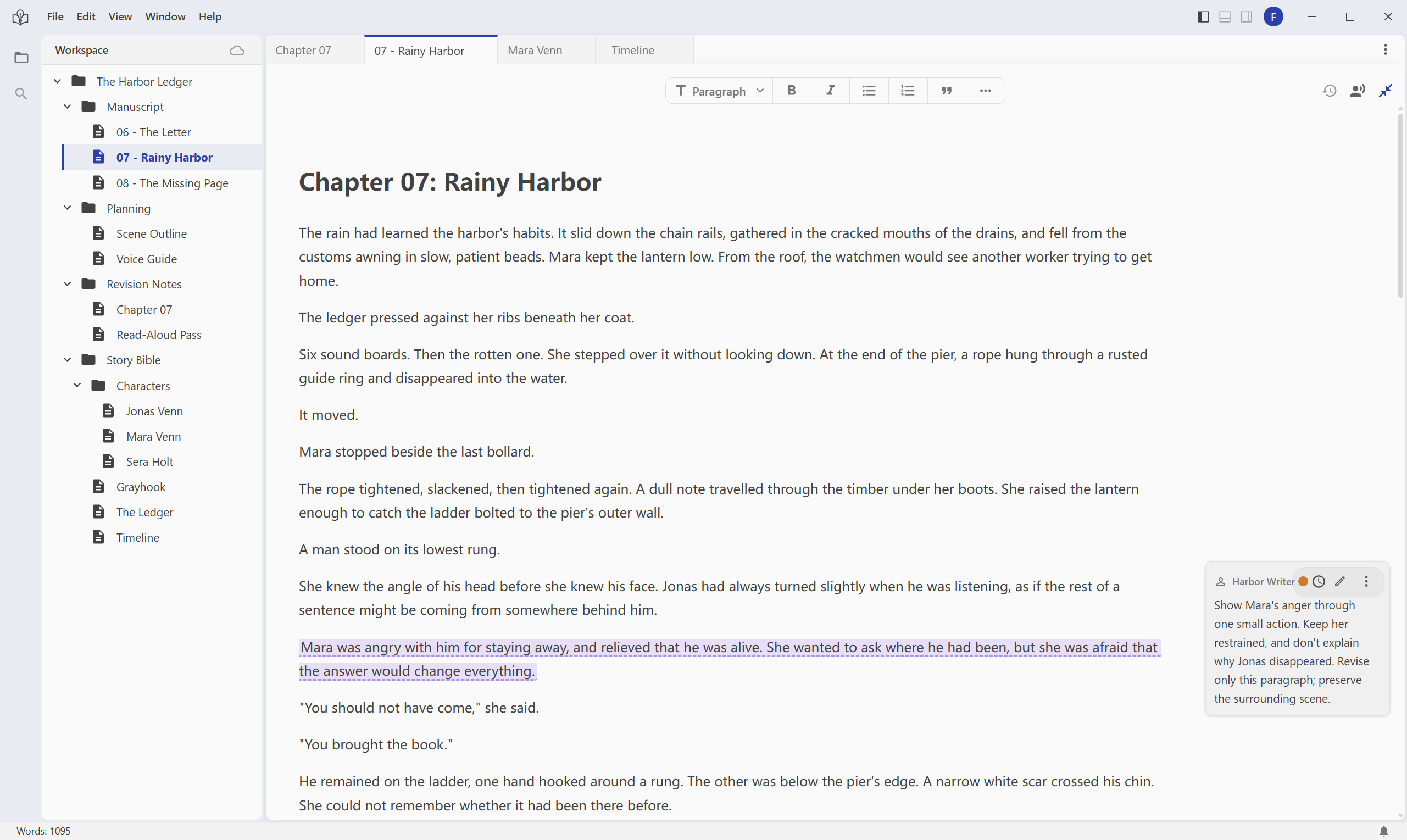
English desktop interface. Select the image to inspect the note at full size.
Ask AI to carry out the direction
Saving an annotation does not start an AI edit by itself. Open AI Chat, choose an available model, and identify the annotation, its document, and the context to read. For the example:
Read the pending AI annotation on the “Mara was angry…” paragraph in Manuscript/07 - Rainy Harbor.aifc. Consult Story Bible/Characters/Mara Venn.aifc and Planning/Voice Guide.aifc. Apply that annotation to its selected paragraph only. Use two or three sentences, with no new backstory or explanation for Jonas's disappearance. Preserve every other paragraph. Leave the change for me to review and give a brief explanation.
If you want advice first, ask AI to explain the problem without editing. When a document has several pending annotations, name the passage and specify which one to handle.
Inspect the proposed changes
When the request finishes, open the affected chapter. The editor shows additions and deletions for review. Read the changed passage alongside the surrounding scene.
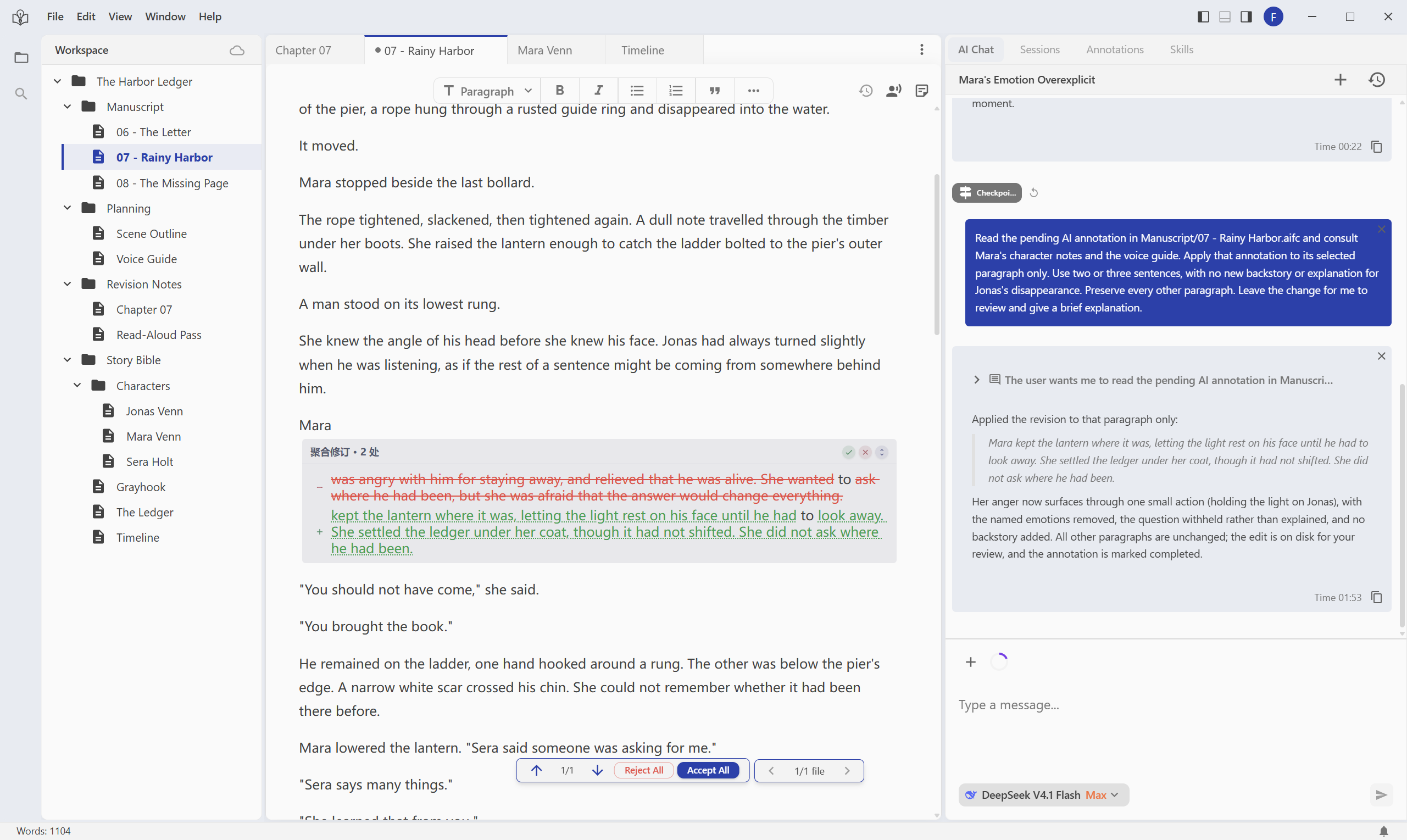
Use these checks before choosing what to keep:
- Does the action still fit the character and the scene?
- Did the revision stay inside the requested passage?
- Did it preserve facts, voice, and information that should remain unrevealed?
AI's explanation helps you understand its choice; the marked text is what you should assess. Results can differ from the screenshot.
Accept or reject the revision
- Use the controls beside an individual revision to accept that change or reject it and restore the earlier wording for that change.
- Use Previous revision and Next revision to move through the changes.
- Accept All keeps all pending revisions in the current document. Reject All rolls back all pending revisions in that document. Read through them before using either action.
- If more than one file has pending revisions, use the file navigation controls to inspect each file.
You can keep a useful change, reject another, and refine the result yourself. If you request another AI pass, make the next instruction equally specific.
If you cannot see the expected result
No annotation dialog appears: make sure you selected non-empty text inside the editor before using the shortcut.
The annotation is saved, but nothing changes: send an explicit request in AI Chat. A personal note is for your own reference; choose AI processing when creating a direction for AI.
No revision appears: read the AI response to see whether it only gave advice, open the file it actually edited, and check whether the revisions were already reviewed.
The revision changes too much: reject the unwanted changes and narrow the instruction to the exact passage and effect you want.
For a final reading pass, the editor's Read current text control reads the current document aloud. Listen for awkward dialogue or pacing, then return to the passage that needs attention. Read aloud requires sign-in and available usage; see credits.